This is a machine-translated text that may contain errors!
Build an Image with a Dockerfile
Here y’all build an image from a Flask app and give it a whirl with docker run. You’re done when the app answers back and ya’ve checked that the local .env file stays on the outside of the new image. The test app don’t need no GitHub nor any external API.
Before you build
You are gonna build an image and show that a container from the image answers back. You need [[Docker Level 1 - Get started|installed Docker]] and gotta be able to start up and check out a container, like what’s shown in [[Container use Level 1 - Run and inspect a container|Run and inspect a container]]. If you don’t have no Flask app, go ahead and use the test app down here. Do your workin’ in the project folder on the Linux VM, where both app.py and any templates or other project files live.
If the project sits in a code repo, [[Git in the terminal Level 1 - Clone, commit, and push|Git in the terminal]] shows ya how to clone it onto the VM. You can also whip those files together right in the VM’s text editor. Use pwd and ls to make sure you’re standin’ in the right folder. Don’t try buildin’ from an empty folder or straight off the Proxmox host’s shell.
Start by tryin’ out with a little test app
If you ain’t got your app on that VM yet, why don’t ya practice them Dockerfiles with a mighty small app. Make yerself a folder with mkdir min-app and cd min-app, then whip up an app.py using nano:
from flask import Flask
app = Flask(__name__)

@app.route("/")
def index():
    return "Howdy from the container!"

if __name__ == "__main__":
    app.run(host="0.0.0.0", port=5000)
After that, go ahead and make yer requirements.txt and Dockerfile just like they’re shown below. Once the build’s workin’, do the same thing for your own app.
Create a requirements.txt in that same folder. It lists them Python packages fer to be installed into the image. Fer dat simple app frum Flask 1, as on’y uses Flask, here’s whar it got:
Bottle
If yer app leans on any third-party libraries, they gotta be listed there with their proper package names, like requests. Files such as .venv don’t get copied over to grab them; Docker installs ‘em fresh from this list. You can pin versions, sayin’ packagename==version, once ya’ve checked which ones your app runs on.
Get a .dockerignore set up before ye do that first build too. Keeps local secrets, Git history, and yore local Python environment outta the image:
.env
.git
__pycache__/
.venv/
app-data/
You better toss that .env into your .gitignore if you’re runnin’ with Git. If them ignore files already got somethin’ in ‘em, just tack on whatever’s missing instead of wipin’ out the whole file. Use .gitignore and secrets to check up on yer trackin’ before ye go sharin’ code with no one.
Build an Image with a Dockerfile
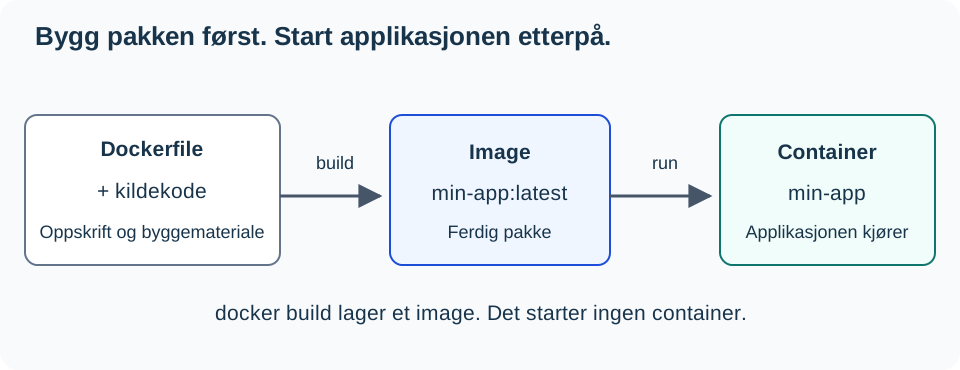
docker build packs it all together. docker run creates and starts a container off that pack. Just building ain’t gonna get your app running. Check out [[Docker Level 0 - What is Docker|Level 0]] if you need a reminder on tellin’ images apart from containers.
One Dockerfile lays down exactly how Docker’s gonna put this image together. Every line does somethin’ specific:
The provided Dockerfile does not contain any Norwegian comments that need translation. All lines are executable instructions (FROM, WORKDIR, COPY, RUN, EXPOSE, CMD) without accompanying comments.
Therefore, the content remains unchanged as per requirement #2 (“Never modify executable code”) and because there is no eligible text to translate.
FROM python:3.12-slim

WORKDIR /app
COPY requirements.txt .
RUN pip install --no-cache-dir -r requirements.txt

COPY . .
EXPOSE 5000
CMD ["python", "app.py"]
Docker builds things step by step. COPY an’ RUN can pile on filesystem layers, while sayin’ how to boot up a container is left to CMD. Docker knows how to recycle old build results from its stash (the build cache). Now when one step needs rebuildin’, all the steps after it gotta run again too.
So we copy over just requirements.txt before doin’ that full COPY . .: them slow installs come first, ‘fore the source code—which changes more often than not—gets copied in:
flowchart TB
    L1["Base image: python:3.12-slim"] --> L2["Workin' folder: /app"]
    L2 --> L3["Yank over requirements.txt"]
    L3 --> L4["Ride 'em in with pip"]
    L4 --> L5["Haul the source code over here"]
COPY requirements.txt .
RUN pip install --no-cache-dir -r requirements.txt
COPY . .
If requirements.txt gets changed, then Docker’s gotta reinstall them packages. That be a good thing ‘cause they new package oughta actually make it into that image. If all you done is tweak some source code, well then Docker can just use what’s already installed and keep on buildin’ from COPY . ..
When Docker publishes a port, it’ll send the traffic right through to whatever’s runnin’ inside that container. So your program better listen on the container’s network, not just 127.0.0.1, which means “this here container.” If your program only listens on 127.0.0.1, other machines won’t be able to reach it through that Docker port.
Flask Example
When runnin’ in a container, Flask needs to listen on all network interfaces (0.0.0.0). 0.0.0.0 means that Flask’s acceptin’ requests from every network card inside the container. Swap out the existing startup block in app.py with this here:
if __name__ == "__main__":
    app.run(host="0.0.0.0", port=5000, debug=False)
This here’s a practice setup with Flask’s dev server. Before this rig gets used in production, it gotta be run on a proper WSI-server; check out Flask: production setup.
EXPOSE 5000 tells ya which port the app uses; don’t let that fool ya into thinkin’ it publishes the port all by its lonesome. That job belongs to -p 127.0.0.1:5000:5000 down below in the command. Build and fire her up:
docker build -t min-app:latest .
docker run -d --name min-app -p 127.0.0.1:5000:5000 min-app:latest
docker logs -f min-app
Press Ctrl+C to stop watchin’ that log. The container keeps on runnin’.
Test it straight off the VM itself:
curl http://127.0.0.1:5000
You’ll get back the content from the app’s main route. In -p 127.0.0.1:5000:5000, that means 127.0.0.1:5000 is port 5000 on the server, but only for programs runnin’ right there on the box itself. The last number is the port inside the container. If it ain’t workin’, check docker ps, the logs, and make sure the port is properly published first.
With 127.0.0.1 up front, that port is locked down against the network, so no other machines can reach the app while you’re buildin’ and testin’. That’s a safe default for an app still in development. Without 127.0.0.1 (-p 5000:5000), the port listens on all the server’s network cards. You won’t need that until another machine or a proxy needs to reach the app, which comes later in Level 3.
Checkpoint: Own Image Works
curl http://127.0.0.1:5000 should show the app’s homepage. For the test app, the reply is Hello from the container!. Explain what docker build made, and what docker run started. If there’s a hitch, read the logs before movin’ on.
Make sure .env is kept outta there
You don’t need a real key to check this here. If your project ain’t got a .env yet, you can make one with PIGGY_TEST=ufarlig_testverdi. Keep that file if it’s already there; don’t go clobberin’ them values of yours.
- Check on the
.envbein’ in both.dockerignorean’.gitignore. - If you’re usin’ Git, run through the checks in the .gitignore drill. A ignored file better not be tracked from before either.
- Build the image fresh an’ inspect that filepath without spillin’ its contents:
docker build -t min-app:latest .
# Check if .env don't exist in /app
docker run --rm --entrypoint sh min-app:latest -c 'if [ ! -f /app/.env ]; then echo "No .env file found in /app"; fi'
The expected outcome is that .env ain’t in /app. If y’all don’t see that message, check out the ignore file before ye go sharin’ the image. This checks the file path inside the finished filesystem o’ the new image. It won’t fix up any old images, other secret files, or values scribbled straight into the code or Dockerfile. Swap out a real key first if the last one got shared around.
If the build or app fails
On a ModuleNotFoundError, check your requirements.txt and rebuild it. For errors downloading base images or Python packages, test your network with Troubleshooting Method. When there’s no HTTP response, read docker logs min-app and verify the Flask address and port mapping.
Next Steps
Show the app’s response and check .env. Explain what the Dockerfile describes, what the build creates, and what docker run starts off with. Keep on to Docker - Publisere applikasjon. If you want to describe startup and updates in a Compose file, then Kjør og oppdater appen med Compose is an optional deep dive.
Compose and updates are now covered under Kjør og oppdater appen med Compose.
Storage is explained in Bevar data utenfor containeren; the use of Compose is detailed at Kjør og oppdater appen med Compose.
The API recipe is found here: Miljøvariabel og API-nøkkel, which is optional.