This is a machine-translated text that may contain errors!
Build an image with a Dockerfile
Here, you build an image from a Flask application and test it using docker run. You are done when the application responds and you have verified that the local .env file is kept outside of the new image. The test application requires neither GitHub nor an external API.
Before you build
You will build an image and verify that a container from the image responds. You need [installed Docker][docker-level-1] and must be able to start and inspect a container, as shown in [Run and inspect a container][container-use]. If you do not have a Flask app, use the test app below. Work in the project folder on the Linux VM, where both app.py and any templates or other project files are located.
If the project is in a code repository, [Git in the terminal][git-terminal] shows how to clone it onto the VM. You can also create the files using the VM’s text editor. Use pwd and ls to ensure you are in the correct directory. Do not build from an empty directory or from the Proxmox host shell.
[docker-level-1]: #Docker Level 1 - Kom i gang
[container-use]: #Containerbruk Level 1 - Kjor og undersok en container
[git-terminal]: #Git i terminalen Level 1 - Klon, commit og push
Try it out first with a small test app
If you haven’t moved your app to the VM yet, you can practice using a Dockerfile with a minimal app. Create a folder with mkdir min-app and cd min-app, then create an app.py file with nano:
from flask import Flask
app = Flask(__name__)

@app.route("/")
def index():
    return "Hi from the container!"

if __name__ == "__main__":
    app.run(host="0.0.0.0", port=5000)
Then create requirements.txt and Dockerfile as shown below. Once the build works, do the same thing with your own app.
Create a requirements.txt file in the same folder. It lists the Python packages that should be installed in the image. For the simple application from Flask 1, which uses only Flask, the contents are:
Bottle
If the application uses other third-party libraries, they must also be listed there with their correct package names, for example requests. Files such as .venv are not copied to install packages; Docker installs them anew from this list. Versions can be pinned, for example using package_name==version, when you have verified which versions the application uses.
Also create a .dockerignore before the first build. It prevents local secrets, Git history, and the local Python environment from being copied into the image:
.env
.git
__pycache__/
.venv/
app-data/
Also add .env to .gitignore if you are using Git. If the ignore files already contain entries, add any missing rules instead of replacing the files. Use [[Git in the Terminal Level 5 - .gitignore and secrets|.gitignore and secrets]] to verify tracking before sharing code.
Create an Image with a Dockerfile
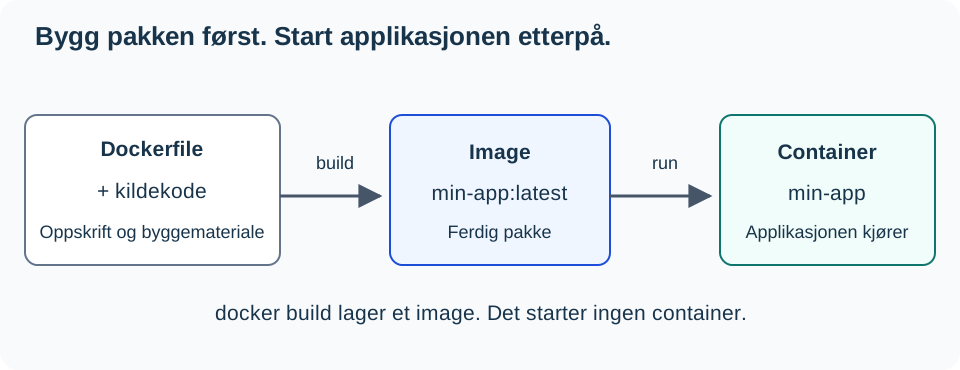
docker build creates the package. docker run creates and starts a container from the package. The build alone does not start the application. See [[Docker Level 0 - What is Docker|Level 0]] if you need to distinguish between an image and a container again.
A Dockerfile describes the steps Docker uses to build an image. Each line performs a specific action:
FROM python:3.12-slim

WORKDIR /app
COPY requirements.txt .
RUN pip install --no-cache-dir -r requirements.txt

COPY . .
EXPOSE 5000
CMD ["python", "app.py"]
Docker performs the build step-by-step. COPY and RUN can add filesystem layers, while for example CMD describes how to start the container. Docker can reuse previous build results from a cache (build cache). When a step needs to be rebuilt, subsequent steps must also be run again.
Therefore, we copy requirements.txt alone before COPY . .: the time-consuming installation comes first, followed by the source code, which changes frequently:
flowchart TB
    L1["Base image: python:3.12-slim"] --> L2["Working directory: /app"]
    L2 --> L3["Copy requirements.txt"]
    L3 --> L4["Install packages with pip"]
    L4 --> L5["Copy source code"]
COPY requirements.txt .
RUN pip install --no-cache-dir -r requirements.txt
COPY . .
If requirements.txt is modified, Docker must reinstall the packages. This is desirable: the new package should actually be included in the image. If only the source code changes, Docker can use the completed installation layer and continue building from COPY . ..
When Docker publishes a port, it forwards traffic to the application inside the container. Therefore, the application must listen on the container’s network interface, not just on 127.0.0.1, which means “this container.” If the application listens only on 127.0.0.1, other machines cannot reach it through the published Docker port.
Flask example
When running in a container, Flask must listen on all network interfaces (0.0.0.0). 0.0.0.0 means that Flask accepts requests on all network cards inside the container. Replace the existing startup block in app.py with:
if __name__ == "__main__":
    app.run(host="0.0.0.0", port=5000, debug=False)
This is a development setup using Flask’s development server. Before deploying to production, it should be run with an appropriate WSGI server; see Flask: Production Deployment.
EXPOSE 5000 describes which port the application uses; it does not publish the port on its own. The command below handles that via -p 127.0.0.1:5000:5000. Build and start:
docker build -t min-app:latest .
docker run -d --name min-app -p 127.0.0.1:5000:5000 min-app:latest
docker logs -f min-app
Press Ctrl+C to stop viewing logs. The container continues running.
Test from the VM itself:
curl http://127.0.0.1:5000
You should get back the content from the app’s main route. In -p 127.0.0.1:5000:5000, 127.0.0.1:5000 refers to port 5000 on the host machine, but only accessible by programs running on that same host. The last number is the port inside the container. If it doesn’t work, first check docker ps, the logs, and ensure the port is correctly published.
With 127.0.0.1 specified at the beginning, the port is closed off to the network, meaning no other machines can reach the application while you are building and testing. This is a safe default for an application in development. Without 127.0.0.1 (i.e., using -p 5000:5000), the port listens on all of the host’s network interfaces. You will need this when another machine or a reverse proxy needs to access the application, as covered in [[Docker Level 3 - Publishing applications | Level 3]].
Checkpoint: Custom image works
Running curl http://127.0.0.1:5000 should display the application’s homepage. For the test app, the response is Hello from the container!. Explain what docker build created and what docker run started. If there are errors, read the logs before proceeding.
Verify that .env is kept out
You don’t need a real key to check this. If the project doesn’t already have a .env, you can create one with PIGGY_TEST=harmless_test_value. Keep an existing file; do not overwrite your values.
- Ensure that
.envis listed in both.dockerignoreand.gitignore. - If you are using Git, run the checks in [[Git in the Terminal Level 5 - gitignore and secrets|the .gitignore exercise]]. An ignored file should also not be tracked previously.
- Rebuild the image and verify this file path without printing its contents:
docker build -t min-app:latest .
docker run --rm --entrypoint sh min-app:latest -c 'test ! -e /app/.env && echo "No comment to translate here as it is inside a string literal used by an executable command, but if treated as a comment in context it would mean: .env does not exist in /app"'
The expected result is that .env does not exist in /app. If this message does not appear, check the ignore file before sharing the image. This checks the file path in the new image’s final filesystem. It does not update old images, other secret files, or values written directly into code or a Dockerfile. Rotate an actual key first if it has previously been shared.
If the build or app fails
For a ModuleNotFoundError, check requirements.txt and rebuild. For errors downloading the base image or Python packages, test the network with [[Debugging Method Level 1 - Systematic Debugging|Debugging method]]. For missing HTTP responses, read docker logs my-app and verify the Flask address and port mapping.
Next steps
Show the app’s response and check .env. Explain what the Dockerfile describes, what the build creates, and what docker run starts. Continue with Publish application. If you want to describe startup and updates in a Compose file, Run and update the app with Compose is an optional deep dive.
Compose and updating are now on Run and update the app with Compose.
Storage is explained in Preserve data outside the container; the use of Compose is on Run and update the app with Compose.
The API recipe is now on Environment variable and API key and is optional.