This is a machine-translated text that may contain errors!
Publishin’ a Docker App
In the Dockerfile exercise, you built an image and started the app with docker run. If you did that optional Compose exercise, you can use Compose instead. Here, you’re gonna get the same app to answer through a DNS name and an available proxy. You can use your own app or the test app from the Dockerfile exercise.
Do the direct test first, then go over HTTP through the proxy. The base path is done when the name gives you the expected app response and you can explain each part of it. HTTPS and installin’ your own proxy are extra options with their own requirements.
When the Flask application runs on a server with a port, a reverse proxy can take requests on behalf of the application and send ‘em along to the right container. That way, the user can use a domain name instead of an IP address and port number. You need a DNS name and a proxy you got access to configure, plus a certificate if the service is gonna use HTTPS.
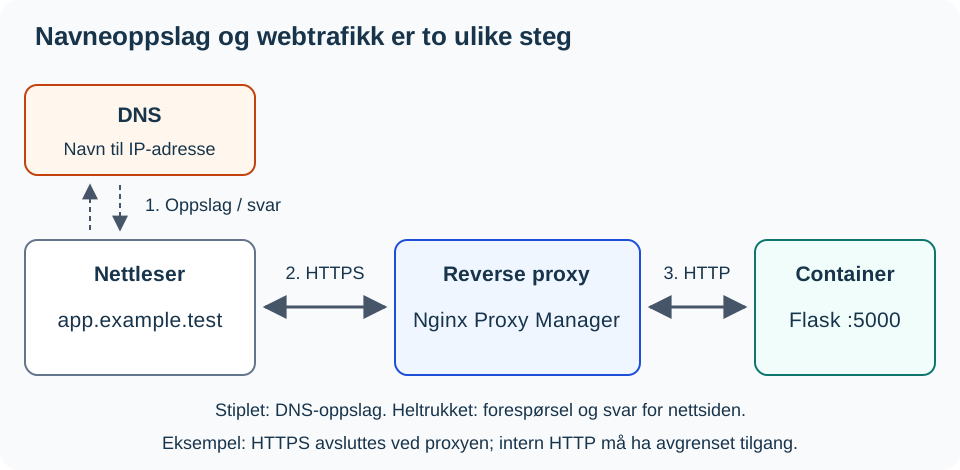
DNS answers with an address but don’t transport the webpage itself. In the diagram, the proxy ends the HTTPS connection and uses HTTP further in a limited internal network. The browser receives the response through the proxy.
Before you start
You need a workin’ container from the Dockerfile drill (or the Compose drill) an’ these details from the test setup:
- APP-VM-IP: the address o’ the VM runnin’ the app; here we’re usin’ port
5000. - PROXY-IP: the address where clients should reach the proxy on, with HTTP on port
80. - APP-NAME: a DNS name pointin’ to the proxy. The app an’ proxy can be sittin’ on different VMs.
You’ll need access t’ create a Proxy Host in Nginx Proxy Manager an’ permission fer the connection fro’ the proxy t’ the app. They placeholders up there got ta be swapped out fer yer own values. If DNS or proxy access ain’t available, do the local test an’ explain the diagram. That don’t count as a finished publishin’ test.
1. Check out that app on your own rig
Get to workin’ inside the project folder on them app VM’s. The commands down here use the container name min-app from that Dockerfile practice run. With the port bindin’ set up over there, this test oughta spit out the front page:
docker ps
curl --fail --show-error http://127.0.0.1:5000/
You can use /status as a fixed checkpoint. If this route ain’t there yet, put it in with them other complete route functions before that if __name__ == "__main__": bit in app.py:
@app.route("/status")
def status():
    return {"status": "ok"}
Build, kick it off, an’ give her a spin again:
The provided input does not contain any comments (lines starting with #) to translate; it consists entirely of executable commands. Therefore, no changes are required per your instructions.
docker build -t min-app .
docker rm -f min-app
docker run -d --name min-app -p 127.0.0.1:5000:5000 min-app
curl --fail --show-error http://127.0.0.1:5000/status
If ya usin’ Compose, swap out them first three commands fer docker compose up -d --build.
Expect a HTTP 200 an’ some JSON with "status": "ok" in it. If yer app already got a /status, use that documented answer instead o’ buildin’ a new route wit’ same name. This checks just this one path, ain’t checkin’ everythin’ else yer app does.
2. Make the App Available to the Proxy
From here on out, we’re usin’ that address from the app’s virtual machine. If the port is just tied up with 127.0.0.1, you’ll need to fire up that container again, pointin’ it at the real IP of the VM in your port mapping. Keep a tight rein on who gets into the network—just bindin’ an ain’t enough to stop any ol’ client from tryin’ to ride in. Only let ‘em near if they’ve got business there.
The provided code block contains no comments; all lines are executable commands. Therefore, the content remains unchanged per the requirement to preserve executable code exactly.
docker rm -f min-app
docker run -d --name min-app -p APP-VM-IP:5000:5000 min-app
curl --fail --show-error http://APP-VM-IP:5000/status
If y’all be usin’ Compose, swap out that port line down in app inside compose.yaml with "APP-VM-IP:5000:5000", then run docker compose up -d.
Run them tests on the app-VM and from the proxy’s network territory, or from a test client holdin’ the same allowed access. The proxy’s actual connection gets checked by name in the next chapter too. Once you’ve changed the bind, test the VM address proper, not 127.0.0.1. Don’t ye open that door to the whole wide web. Segmentation gives support to the access rule.
From Domain to Container
Several things happen when a user opens a name like https://app.example.test. This is an example name; swap it out for the one actually set up in your test environment:
sequenceDiagram
    participant B as Browser
    participant D as DNS
    participant P as Nginx Proxy Manager
    participant F as Flask-container

    B->>D: Find the domain's IP address, partner
    D-->>B: The proxy's IP address, howdy
    B->>P: Request to the domain, y'all
    P->>P: Locate the proper Proxy Host
    P->>F: Forward it over to internal port 5000
    F-->>P: Hand back that HTML page
    P-->>B: Deliver the response, so long
So it’s smart to test one layer at a time, rather than debuggin’ DNS, proxies, and all that Flask stuff at once.
New to DNS an’ reverse proxy concepts?
[[Protocols Level 2 - Network Services an’ Server Roles|🌐 Network Services an’ Server Roles]] explains DNS servers an’ reverse proxies in general, usin’ the same pattern as here, before ya set it up specific with Nginx Proxy Manager.
Nginx Proxy Manager
Nginx Proxy Manager is a web interface for Nginx. Here you use an available installation and create one Proxy Host. You don’t need to set up a new proxy for every app.
Create a Proxy Host:
- Type
APP-NAME, the name actually configured for the service. - Select
httpas the scheme for the connection from Nginx Proxy Manager to the container. - Enter
APP-VM-IPas the forward hostname.127.0.0.1inside a proxy container means the proxy container itself. - Enter the published port of the container, for example
5000. - Save and open
http://APP-NAME/statusfrom the client.
The name should resolve to PROXY-IP. You can check the lookup with nslookup APP-NAME on the client. The HTTP test should give the same status response as the direct test. Getting the proxy’s default page does not show that the request hit the app.
Runnin’ It Back: HTTPS
When HTTP is workin’ an’ you got a valid certificate fer that name, y’all open up the SSL tab, pick out the cert, an’ test https://APP-NAME/status. A internal example name like app.example.test can’t get no public cert from Let’s Encrypt; what ya need then is a cert from an internal issuer that the client trusts on its own two hooves. Doin’ a DNS lookup all by itself ain’t gonna set up HTTPS for ya. That HTTP base route is just local practice; when it comes to handle login or any other sensitive data, ya better have HTTPS squared away.
The proxy gotta be able to reach that port on the server. If the container runnin’ on some other machine, well, the network an’ firewall needsa let traffic flow between them machines without fuss. You don’t needta expose the Flask port straight out ta whole ol’ internet if Nginx Proxy Manager is your front door; keep access tight with the firewall followin’ whatever setup the school has down south.
Unsure on firewall rules between VMs?
[[Segmentation Level 1 - VLAN and network segmentation|🧱 Segmentation]] has its own section on firewall rules between networks.
Re-election: Own proxy
Only set up your own proxy when you actually need one and have a dedicated test environment. Use the Nginx Proxy Manager installation guide. After that, head back to creating the Proxy Host above. This is an independent setup, not a prerequisite for using an existing proxy.
Troubleshootin’
New to systematic troubleshootin’?
[[Troubleshooting Method Level 1 - Systematic Troubleshooting|🔍 Troubleshooting Method]] gives ya the full method (seven steps, halvin’ it up, expected vs actual) behind that layer-by-layer testin’ below there.
The provided input contains no comments (lines starting with #), so there is nothing to translate. The code remains unchanged as per your instructions.
docker ps
docker logs -f min-app
ss -tulpn
If you’re runnin’ Compose, the first two commands are docker compose ps and docker compose logs -f. Run ‘em one by one on that app VM. Hit Ctrl+C to stop logs -f. The ps shows ya how them containers be doin’, the log gives ya what the app is sayin’, an’ ss can help ya check which ports are listenin’. Use the results from that specific HTTP test to see if ya got access.
Test in this order:
- On that app VM after changein’ the bind:
curl --fail --show-error http://APP-VM-IP:5000/status. - From the proxy’s network setup: same address, port, an’ route. Any ol’ client might have different rules for gettin’ in there.
- From the client through the name:
nslookup APP-NAVN, thenhttp://APP-NAVN/status. Test HTTPS separate-like if it’s set up.
If step 1 don’t work, look into the app, container status, address, an’ port binding. If step 1 works but step 2 fails, check the connection an’ access rules comin’ from the proxy. If step 2 works but step 3 fails, dig into DNS, Proxy Host, an’ whatever protocol ya picked. A 404 means some HTTP server answered back, but maybe the path was wrong; a 502 from the proxy points at the connection or what the app sent back. Jot down where the test stops before ya go changin’ anything.
Next Steps
Show off that status response by name and explain the difference between a DNS lookup and the handoff in the proxy. Point out the client, the proxy, and the app on the diagram or your own sketch. You can talk it through with your mouth or put it down on paper. Give us the test address, what you expected to see versus what actually showed up, and whether you rode HTTP or HTTPS. If somethin’ ain’t right, run through the test order above before movin’ along.
Once the main trail is workin’, you can use this setup for more of the project ahead. Docker - Publisere container med workflow is where you learn how to automate buildin’ and publishin’ the image.
Sources: Docker: portbinding, Nginx Proxy Manager and Flask: ruter og svar.