This is a machine-translated text that may contain errors!
Publishing a Docker application
In the [[Docker Level 2 - Dockerfile and Compose|Dockerfile exercise]], you built an image and started the app with docker run. If you completed the optional [[App with Compose Level 1 - Run and update the app|Compose exercise]], you can use Compose instead. Here, you will get the same app to respond through a DNS name and an accessible proxy. You can use your own app or the test app from the Dockerfile exercise.
First perform the direct test, then over HTTP through the proxy. The basic path is complete when the name returns the expected app response and you can explain the components. HTTPS and installing a dedicated proxy are advanced options with their own prerequisites.
When the Flask application runs on a server on a port, a reverse proxy can receive requests on behalf of the application and forward them to the correct container. This allows users to use a domain name instead of an IP address and port number. You need a DNS name and a proxy that you have access rights to configure, as well as a certificate if the service should use HTTPS.
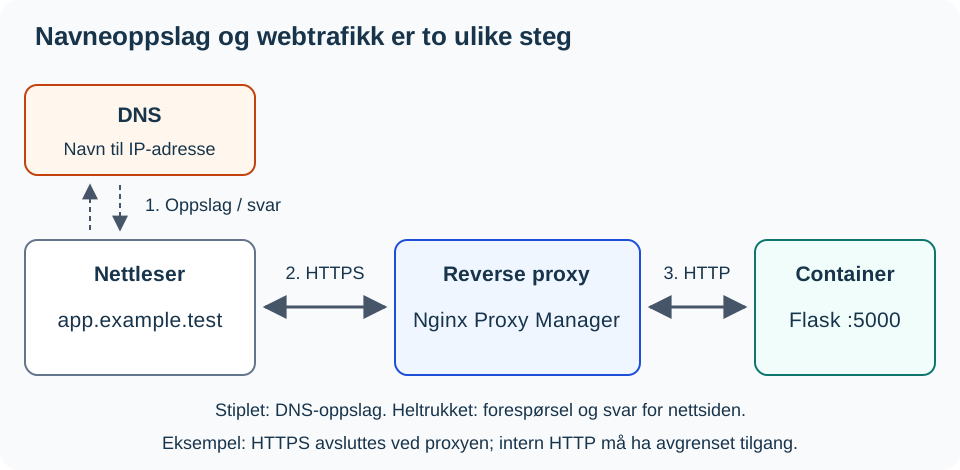
DNS responds with an address but does not transport the webpage. In the figure, the proxy terminates the HTTPS connection and continues using HTTP within a restricted internal network. The browser receives the response through the proxy.
Before you begin
You need a working container from the Dockerfile exercise (or the Compose exercise) and these details from the test environment:
- APP-VM-IP: the address of the VM running the application; here, port
5000is used. - PROXY-IP: the address where clients should reach the proxy, with HTTP on port
80. - APP-NAME: a DNS name that points to the proxy. The application and the proxy can be located on different VMs.
You need access to create a Proxy Host in Nginx Proxy Manager and permission for the connection from the proxy to the application. The placeholders above must be replaced with your values. If DNS or proxy access is not available, perform the local test and explain the diagram. This does not constitute a completed publication test.
1. Test the application locally
Work in the project directory on the app VM. The commands below use the container name my-app from the Dockerfile exercise. With the port binding from there, this test should return the main page:
docker ps
curl --fail --show-error http://127.0.0.1:5000/
You can use /status as a fixed checkpoint. If this route does not already exist, add it after the other complete route functions and before if __name__ == "__main__": in app.py:
@app.route("/status")
def status():
    return {"status": "ok"}
Build, restart, and retest:
docker build -t min-app .
docker rm -f min-app
docker run -d --name min-app -p 127.0.0.1:5000:5000 min-app
curl --fail --show-error http://127.0.0.1:5000/status
If using Compose, replace the first three commands with docker compose up -d --build.
Expect an HTTP 200 status code and a JSON response containing "status": "ok". If your application already has a /status endpoint, use its documented response instead of creating a new route with the same name. This verifies the specific route, not all application features.
2. Make the application available to the proxy
The rest of this guide uses the network address of the application virtual machine (app-VM). If the port is bound only to 127.0.0.1, restart the container with the actual IP address of the VM included in the port mapping. Restrict network access to necessary sources; binding an address alone does not limit which clients can connect.
docker rm -f min-app
docker run -d --name min-app -p APP-VM-IP:5000:5000 min-app
curl --fail --show-error http://APP-VM-IP:5000/status
If using Compose, replace the port line under app in compose.yaml with "APP-VM-IP:5000:5000" and run docker compose up -d.
Run the test on the application VM and from the proxy’s network environment, or from a test client with equivalent permitted access. The proxy’s actual connection is also verified by name in the next section. After changing the binding, test the VM address, not 127.0.0.1. Do not expose the port to the entire internet. [[Segmentation Level 1 - VLAN and Network Segmentation|Segregation]] supports this access rule.
From domain to container
Several things happen when a user opens a name like https://app.example.test. This is an example name; replace it with the name actually configured in your test environment:
sequenceDiagram
    participant B as Browser
    participant D as DNS
    participant P as Nginx Proxy Manager
    participant F as Flask-container

    B->>D: Find the domain's IP address
    D-->>B: The proxy's IP address
    B->>P: Request to the domain
    P->>P: Find the correct Proxy Host
    P->>F: Forward to internal port 5000
    F-->>P: Return HTML page
    P-->>B: Return the response
It is therefore wise to test one layer at a time, instead of debugging DNS, proxy, and Flask simultaneously.
New to DNS and reverse proxies as concepts?
[[Protocol Level 2 - Network Services and Server Roles|🌐 Network Services and Server Roles]] explains DNS servers and reverse proxies in general, using the same pattern as here, before you set it up concretely with Nginx Proxy Manager.
Nginx Proxy Manager
Nginx Proxy Manager is a web interface for Nginx. Here you use an available installation and create one Proxy Host. You do not need to install a new proxy for each app.
Create a Proxy Host:
- Enter
APP-NAME, the name actually configured for the service. - Select
httpas the scheme for the connection from Nginx Proxy Manager to the container. - Enter
APP-VM-IPas the forwarding host.127.0.0.1inside a proxy container refers to the proxy container itself. - Enter the published port of the container, for example
5000. - Save and open
http://APP-NAME/statusfrom the client.
The name should resolve to PROXY-IP. You can verify the lookup with nslookup APP-NAME on the client. The HTTP test should give the same status response as the direct test. Getting the proxy’s default page does not show that the request reached the app.
Re-election: HTTPS
When HTTP works and you have a valid certificate for the name, open the SSL tab, select the certificate, and test https://APP-NAME/status. An internal example name like app.example.test cannot obtain a public certificate from Let’s Encrypt; in that case, you need a certificate from an internal issuer trusted by the client. The DNS lookup alone does not set up HTTPS. The basic HTTP route is local practice; when handling login or other sensitive data, you require HTTPS.
The proxy must be able to reach the server’s port. If the container runs on another VM, the network and firewall must allow traffic between the VMs. You do not need to expose the Flask port directly to the entire internet if Nginx Proxy Manager is the entry point; restrict access with a firewall according to the school’s setup.
Unsure about firewall rules between VNs?
[[Segmentation Level 1 - VLAN and network segmentation|🧱 Segmentation]] has its own section on firewall rules between networks.
Re-election: Own proxy
Only set up a separate proxy when you actually need one and have your own test environment. Use the Nginx Proxy Manager installation guide. Then go back to creating a Proxy Host above. This is an independent setup, not a prerequisite for using an existing proxy.
Troubleshooting
New to systematic troubleshooting?
[[Troubleshooting Method Level 1 - Systematic Troubleshooting|🔍 Troubleshooting method]] provides you with the full method (seven steps, bisection method, expected vs actual) behind the layered testing below.
docker ps
docker logs -f min-app
ss -tulpn
If you are using Compose, the first two commands are docker compose ps and docker compose logs -f. Run these commands one by one on the App VM. Terminate logs -f with Ctrl+C. ps shows container status, the log displays application messages, and ss can assist in investigating listening ports. Use the result from the specific HTTP test to verify access.
Test in this order:
- On the App VM after changing the binding:
curl --fail --show-error http://APP-VM-IP:5000/status. - From the proxy’s network environment: same address, port, and route. An arbitrary client may have different access rules.
- From the client via the name:
nslookup APP-NAME, thenhttp://APP-NAME/status. Test HTTPS separately if it is configured.
If step 1 fails, investigate the app, container status, address, and port binding. If step 1 works but step 2 fails, investigate the connection and access rules from the proxy. If step 2 works but step 3 fails, investigate DNS, Proxy Host, and the chosen protocol. HTTP 404 means an HTTP server responded, but the route might be incorrect; a 502 from the proxy points to the connection or response from the app. Note what the test isolates before making any changes.
Next steps
Show the response by name and explain the difference between the DNS lookup and the forwarding in the proxy. Also point out the client, proxy, and app in the diagram or your own sketch. You can explain verbally or in writing. Specify the test address, expected/actual response, and whether you have tried HTTP or HTTPS. If there are deviations, use the testing sequence above before proceeding.
Once the basic route works, you can continue using the setup in the project. [[Docker Level 4 - Publish container with workflow|Docker - Publish container with workflow]] is further training on automating the building and publishing of the image.
Sources: Docker: port binding, Nginx Proxy Manager and Flask: routes and responses.