This here’s a machine-translated text that might contain some errors!
Mac Installin’
If yer on a Mac, ya should already have Python installed. Ya can check this by openin’ the “Terminal” program, then ya can type python3 -V (big V for version) in the terminal. That’ll show ya which version o’ Python ya got. To test if everythin’s workin’ right, ya can head on over.
Viktig!
Now, ya might see somethin’ sayin’ “No developer tools found”. If that pops up, just let yer machine install ‘em. Once that’s done, close yer terminal and fire up a new one, then type python3 -V again to check if Python’s installed.
Windows Installin’
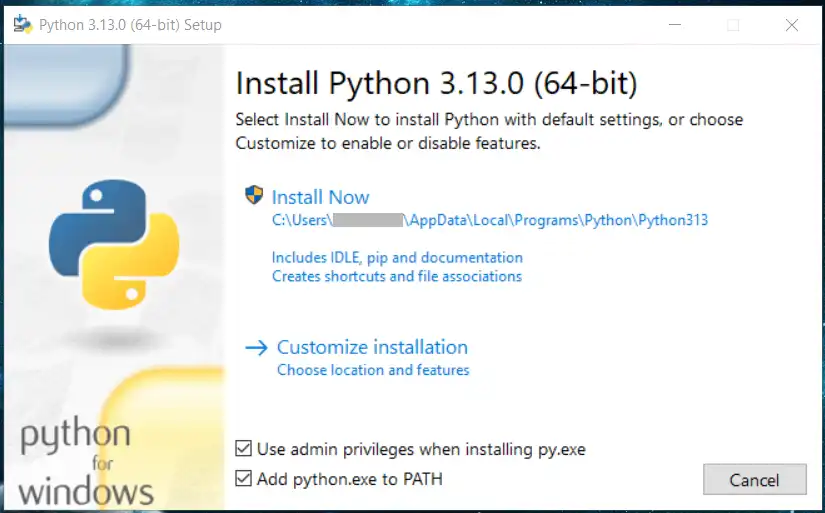
Now, on Windows, Python ain’t comin’ pre-loaded, so we gotta download it and install it ourselves Python download.. Once ya got the download, just run that installin’ file and follow the directions.
Før du installerer! ☝🤓
You GOTTA check (✅) “Add Python to PATH” for it to work. If you mess this up, the easiest fix is to uninstall Python and reinstall it. It might also be important to check “Use admin privileges when installing py.exe”
Python Extension i VS Code
We reckon y’all oughta go ahead and install the “Python” extension in VS Code, alright? It’ll give ya a hand with functions and such in Python.
A Simple Test Program
After installin’, ya can open up VS Code.
- Head on over to File -> Open Folder.
- Make yerself a folder in, say, “Documents” called “Python”.
- Create a file named
hello.py. - Write the followin’ program that prints a right purdy little message:
print("Hallo, 1IM!") # Howdy, 1IM!
What’s happenin’ in this here code?
print is a built-in function in Python that writes out text in the terminal window. You might not know what a function is yet, but the most important thing to know is that there gotta be parentheses after the function name. Text in Python needs to be between quotation marks ("), whatever’s between ‘em is what’s gonna be written out.